Author: Pat Fires

Why Did My Phone Randomly Restart and How Do I Fix It?

Are you searching online for, “Why did my phone randomly restart?” If your phone restarts at the most inconvenient times, you’ll want a fast resolution so you can stay connected to your friends, family, and coworkers.

As a trusted source of phone and computer repair in Tucson, AZ, Quik Fix Repair can quickly restore your phone for a competitive price. We know all the reasons your phone randomly restarts and how to fix it.

Reasons Your Phone Randomly Restarts

The most common phone issues that can cause your phone to randomly restart include the following:

  • If you haven’t updated your phone in a while, an outdated operating system can restart your phone without warning.
  • A third-party or untrustworthy app conflict can cause compatibility issues or corrupt your device. Even a reliable app can restart your phone if it has a software glitch.
  • Low storage space or running too many apps at once can cause memory problems, which shut down your device.
  • Overheating can force your phone to shut down. This can happen from laying it in the sun, overcharging it, or prolonged gaming.
  • Certain battery issues, such as degradation or bloating, can prevent it from properly connecting to the charger. This can force shutdowns and restarts.
  • Hardware components include the power button, screen, and electronic circuits. If any hardware components malfunction, it can make your phone restart frequently.

Fixing Your Restarting Phone

If you’re wondering, “Why did my phone randomly restart?” you can use several techniques to try and fix the issue.

Update Your Phone

The first thing you should try is an operating system and firmware update. Enter your settings and determine if you have any available updates. You’ll need to plug your phone in during the process.

Uninstall Faulty Apps

If you think a corrupted or third-party app is causing your problem, uninstalling it can help. This might require some trial and error if you don’t know exactly which application causes the issue. However, you can likely pinpoint when the problem started and uninstall the application you downloaded most recently.

Update Applications

Did you know you have to update the apps you have on your phone? You can figure out which apps need updating in your iPhone store or Google Play app. You can also check your app settings, which lets you queue all your apps for updating at once.

Delete Useless Data

If your phone has less than 10% storage space left, freeing up some memory can help it run better. Consider moving some photos to the cloud or deleting applications you haven’t used in a while.

Reduce Overheating

Overheating can seriously damage your phone, so you should reduce it even if it doesn’t cause your phone to restart. Avoid bulky cases, don’t put your phone in direct sunlight, and avoid gaming for long periods.

Quik Fix Repair Can Fix Your Broken Phone

Why did my phone randomly restart? Whether you drop your phone in water or it randomly restarts, reach out to Quik Fix Repair. You won’t feel disappointed with our professionalism and superior results.

To book an appointment, reach out now.

How Long Should a Computer Last?

We’ve all had that moment when it becomes abundantly clear that our trusty computer is at the end of its useful life. Whether it suddenly stops working entirely or slowly declines to the point where performing even simple tasks becomes an exercise in frustration, the outcome is the same: it’s time for a replacement. 

Although new computers aren’t nearly as expensive as they were in the past, upgrading to a new machine is still an investment. But how long should a computer last? At Quik Fix Repair, the leading provider of reliable computer repair in Tucson, AZ, we do everything possible to restore computers to good working condition, but the following factors determine the machine’s lifespan.

When To Plan for a Computer Replacement 

Before answering the question, “How long should a computer last?” it’s important to recognize that no computer, regardless of the brand or quality, will last forever. As a general rule, you should plan to replace a desktop computer every five to eight years and a laptop computer every two to five years. 

Factors That Influence Computer Lifespan 

Although every computer will eventually see a decline in performance and reliability, a few things can, unfortunately, speed up that process.

How You Use the Computer 

Constantly pushing your computer beyond its capabilities will wear out the internal components more quickly. For example, constantly running multiple applications or performing complex tasks contributes to processor deterioration. Turning the computer on and off frequently, rather than using sleep mode, can also stress internal components. 

Hardware 

Quite simply, higher-quality hardware, including the central processing unit (CPU), the motherboard, and the hard drive, lasts longer. New software can put additional strain on older components that don’t have the capability to run them efficiently, speeding up the computer’s decline. It’s useful to consider buying any new computer as an investment and get the most powerful hardware you can afford to ensure a longer lifespan and adequate capabilities year after year. 

Sometimes, your computer only needs an upgrade or replacement part to extend its lifespan. Adding RAM or replacing a hard drive with a more reliable solid-state drive may be a more cost-effective option than investing in a brand-new computer.

Maintenance 

Like anything else, computers require care and maintenance to remain in good condition. This includes installing required updates and upgrades to address bugs and security concerns, keeping the unit cool and well-ventilated, cleaning it inside and out to remove dust and debris, and taking care to avoid physical damage. The better you care for your computer, the longer it will last.

Get Help From Quik Fix Repair

If you suspect your computer is on the decline or you have a problem you cannot solve, like if the computer camera stops working, bring it to the experts at Quik Fix Repair in Tucson. We’ll answer all your questions about how long should a computer last and offer advice and strategies to ensure your equipment provides trouble-free operation for as long as possible. Request a free repair quote now. 

Why Does My Laptop Battery Drain So Fast?

Are you wondering, “Why does my laptop battery drain so fast?” As a trusted computer repair company in Tucson, AZ, Quik Fix Repair can help you understand why your battery doesn’t last long. They’ll also help you understand your options for extending the battery life.

Reasons for a Rapidly Draining Laptop Battery

If you’ve seen your battery life drop, you likely have one of the following issues.

Too Many Programs

If you’re running too many programs, even if they don’t individually use a lot of power, you’ll see your battery life drop quickly. Sometimes, something as simple as having an excessive number of tabs open in your browser can increase your computer’s resource usage and rapidly sap its battery.

Heavy Applications

Whether you’re working from home or enjoy playing games, if you run even a single program that requires a lot of Random Access Memory and other resources on your computer, it quickly drains your battery. Resource-heavy applications include things like modern video games, video and photo editing software, and conferencing programs like Zoom.

System Settings

Various system settings can cause your battery to drain more quickly than normal. Screen brightness remains a common cause of low battery life, but your keyboard’s backlight or running the computer in high-performance mode can also lead to rapid battery drain.

Excessive Connections

If you have a lot of devices connected to your computer, they’ll add to the burden of your computer’s battery. For example, if you use your laptop to charge your phone, connect your laptop to a printer, or connect a webcam to it, the only way to power these connections is your laptop battery. If you have an excessive amount of network connections, such as interfacing with other computers on the same WiFi network, this can also drain your battery.

Corrupted Firmware

Firmware essentially helps your computer’s hardware communicate with the software. For example, when you plug in a mouse, the firmware tells the computer how to interact with it. If you have corrupted firmware, it can cause power issues and your battery may wear out faster or even fail to provide any power.

Outdated Components

If you’re asking, “Why does my laptop battery drain so fast?” you may have an outdated operating system or battery. If you haven’t updated your Windows or iOS, it can force your computer to draw more resources and lower the battery life.

Your battery should last between two and four years. When your battery age approaches that point, you’ll notice a significantly lower duration of power.

Addressing a Short Laptop Battery Life

How can you improve your battery’s life when it’s not lasting as long as you’re used to?

Monitor Settings

One of the easiest approaches is monitoring your laptop’s settings. You can set your computer to use a lower brightness when you’re relying solely on the battery. You can also select other settings, such as dropping out of high-performance mode and turning off or reducing your keyboard’s backlight.

You can find these settings under the display category and power settings. You shouldn’t have any problems using maximum settings when you have your computer plugged in.

Minimize Connections

Because power-intensive components draw power from your battery, you should minimize the number of devices you connect when you don’t connect your computer to a power source. For example, if you’re running on battery power, don’t use your computer to charge your phone. Running on battery power is all about prioritizing how you use your laptop, and you should seriously consider which connections you require and which are convenient.

Prioritize Applications

While on battery power, prioritize the applications you’re using and reduce them to only the most essential programs. This can help you eliminate most of the background processes. You should also avoid video gaming and other resource-intensive activities when you’re not plugged in. 

Regular Updates

Ignoring operating system updates from Windows and Apple not only leaves you vulnerable to security breaches, but it can also significantly reduce your battery life. Always install updates as soon as they become available. In addition, ensure you’re updating your graphics drivers and other firmware.

Component Replacements

Sometimes, you just need a new battery. Whether you have an old battery or you have a different corrupted component, replacing it can solve your problem.

Quick Fix Repair Can Improve Your Laptop Battery

If you’re asking, “Why does my laptop battery drain so fast?” Quik Fix Repair can diagnose and fix the issue. Whether you need help choosing a new laptop for fixing something on your current device, you won’t find more expert and reliable help. For a free quote, call 520-448-9611.

What to Do If You Spill Water on a Laptop

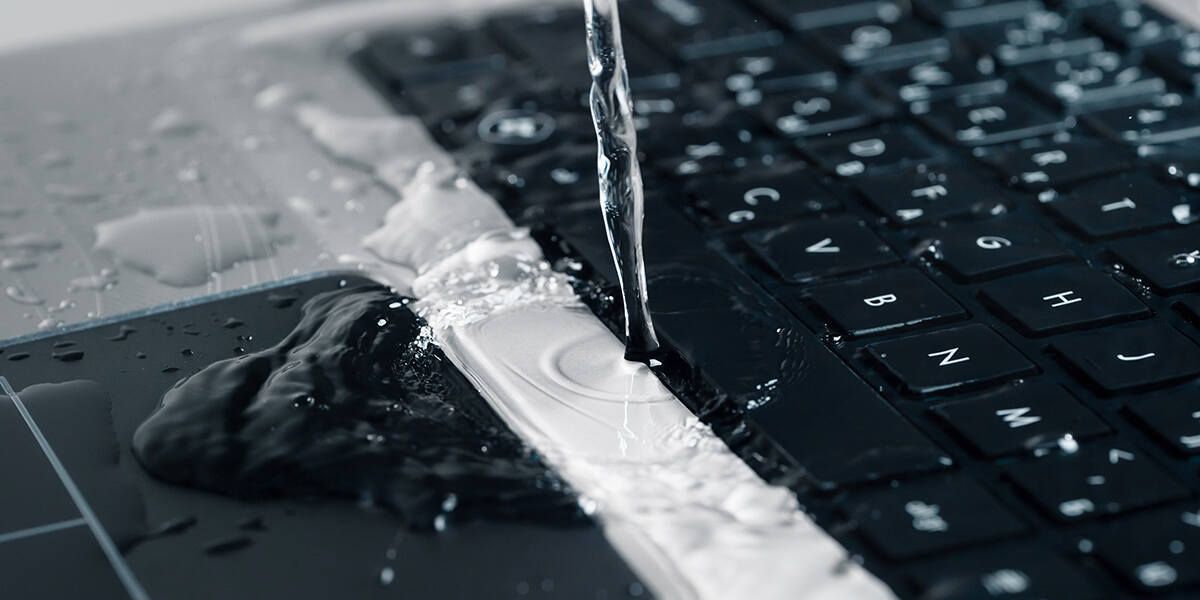
No matter how careful you are with liquids around your laptop and other computer equipment, accidents still happen. Spilling something on your electronics can cause them to short-circuit and fry, rendering them useless in the worst-case scenario. Knowing what to do if you spill water on a laptop can save you time and money while preserving your data. 

As a top computer repair service in Tucson, AZ, Quik Fix Repair knows that it’s possible to fix a water-damaged laptop at home if you know the correct steps and act quickly. Our guide below explains what you can do to save a laptop from water spills. 

Top Laptop Water Damage Emergency Steps

Unless you have a water-resistant laptop, the last thing you want to do is accidentally drop water on it. When moisture soaks your laptop screen or keyboard, it could cause damage to internal components, leading to hardware problems. Knowing how to dry out a wet laptop quickly will make preventing serious complications like total device failure easier. 

Here’s what to do to prevent a short circuit after a laptop water spill. 

Turn the Laptop Off

The first thing to do to save your laptop from a premature malfunction due to a water spill is to turn the system off. Water and electronics with power can be dangerous. As soon as the spill occurs, unplug the device and press the power button for at least five seconds to shut the laptop down.

Leaving the power on while trying to clean the spill will make a short circuit more likely. If the water splashes on you as well as the computer, don’t unplug the device from the wall. It’s better to turn off the circuit breaker for the outlet to avoid an electric shock or electrocution.

Unplug Accessories

When learning what to do if you spill water on a laptop, remember about laptop attachments and accessories. These may include thumb drives, USB cords, and wireless mouse attachments. You don’t want the moisture to affect those components or create spaces where water can hide. 

You should also flip the laptop upside down and remove the battery if possible. Again, you don’t want moisture to hide in the laptop’s cracks and crevices. 

Dry All Surfaces

When the computer is off and no longer has its battery or attachments, start drying it off. Use a soft, lint-free towel or cloth to wipe down the entire surface of the laptop, including its screen.

Avoid using a heat source like a blowdryer or sunlight to dry out the laptop. Excessive heat can cause additional damage to the electronic equipment. Instead, open the laptop, turn it upside down in a “V” shape, and lay it on a towel so the water can drip out. Let the device air dry for at least 24 hours.

Open Laptop to Remove Internal Components

Sometimes a water spill around a laptop is severe enough that a simple air dry won’t be sufficient. If moisture gets deep into the laptop, you might need to open the back panel and remove the components to ensure thorough drying.

Unfortunately, opening the back of an older laptop is more straightforward than taking a modern device apart. In that case, it may be best to let the laptop air dry as much as possible and take it to a computer repair shop for additional help. 

Clean Water vs Sticky Liquid on Laptops: Same Cleaning and Drying Methods?

The type of moisture that gets on your laptop will determine whether you should attempt the repair at home or if you need professional guidance. For instance, water isn’t acidic, and while it is damaging, it won’t immediately ruin the computer. It’s possible to save a laptop from a water spill. 

Conversely, sticky liquids like juice, soda, or alcoholic beverages are more corrosive and conductive. They can quickly cause permanent damage, so professional intervention is necessary.

Get Help for Your Water-Damaged Laptop From Tucson’s Repair Experts

Are you still struggling with your computer equipment after learning what to do if you spill water on a laptop? Quik Fix Repair in Tucson, Arizona, is here to help. Whether you drop your phone on water or spill something on your computer, we offer innovative electronic repair solutions. 

With more than 250,000 successful device repairs in our portfolio, we know how to quickly troubleshoot problems and provide long-term fixes. We offer low prices and a lifetime warranty on our work. Call Quik Fix Repair at (520) 448-9611 for a quote from our East Side location, (520) 463-7044 for our South Side shop, or (520) 850-6637 to reach our Central Tucson location.

Why Is My Laptop Camera Not Working?

A laptop camera is just about as necessary as the keyboard, especially if you work from home. While it can be distressing, if your camera has stopped working, you can resolve the issue relatively quickly.

If you’re wondering, “Why is my laptop camera not working?” then allow Quik Fix, which is responsible for expert computer repair service in Tucson, AZ, to explain all the troubleshooting tips you need to know.

Troubleshooting Options for Restoring Your Laptop Camera

Ensuring your camera works is just another part of how you care for your laptop. You can try several different troubleshooting steps to get your camera back online.

Update Your Camera’s Drivers

Sometimes, software incompatibility can be the source of your issues. Resetting the drivers can help resolve a camera issue, even if you’re just having problems with camera latency. If your camera isn’t working, you may need to update your drivers to their latest versions:

  1. Press Windows + X and click Device Manager
  2. Within Device Manager, expand Imaging Devices by clicking it.
  3. Right-click your laptop’s camera driver.
  4. Select Update Driver.
  5. Select Search automatically for updated driver software and select the latest update.

Ensure Correct Windows Camera Settings

If your camera isn’t working correctly, it may be because your camera’s settings within Windows are incorrect, denying your computer permission to use the camera. Sometimes, settings can change during normal operation. Or, if you’ve never used your camera before, Windows may have turned this setting off:

  1. Go to Settings.
  2. Search “webcam” in your search box.
  3. Select Camera privacy settings.
  4. Turn Allow apps to allow access to the camera.
  5. Below, select all the apps you want to use for your camera.

Troubleshoot via the Control Panel

If you don’t know the answer to the question, “Why is my laptop camera not working?” then maybe Windows itself can help you. Troubleshooting in the Control Panel can amend all kinds of issues besides your camera not working. If you’re having trouble, a Windows troubleshooting session may be able to fix your problem without any more of your effort required.

  1. Go to your Control Panel by typing “control panel” in your Settings search bar.
  2. Scroll down before clicking Troubleshooting.
  3. On the left, click View All.
  4. Click Hardware and Devices, then Next.
  5. After clicking next, the troubleshooting program will attempt to detect and fix your issue if there is one with the software of your camera.

Rollback Your Drivers

If updating your drivers doesn’t fix the issue, your drivers may be the problem. Rolling them back can help resolve any compatibility issues your laptop’s camera may be having with the system. You can do all of this within Device Manager.

  1. Search for Device Manager in your Settings search box.
  2. Click Imaging Devices, where your camera is located.
  3. Right-click your camera and select Properties.
  4. In the Driver tab, click the Roll Back Driver option and click OK. 
  5. Restart your computer.

Uninstall and Reinstall the Camera Drivers

Sometimes, reinstalling drivers can fix a problem if the initial install isn’t functioning properly.

  1. Press Windows + X and select Device Manager.
  2. Scroll until you find Imaging devices.
  3. Right-click your camera under Imaging Devices and click Uninstall Device.
  4. After opening the Uninstall Device window, check the Delete the driver software for this device option. Click Uninstall.
  5. Under the Action tab, click Scan for hardware changes. This will reinstall all missing drivers.

Check and Disable Camera Apps

If multiple apps are using your camera, they may clash and not allow seamless camera usage between them:

  1. Open Task Manager.
  2. Select the Start-up tab.
  3. Find all processes that are using the webcam.
  4. For each process you don’t want to use your webcam, right-click the process and choose Disable.

Reset Your Camera App

If all else fails, try resetting the app itself:

  1. Select Settings > Apps > Apps & Features > Camera
  2. Once you find the Camera app, select Advanced Options.
  3. Choose Reset.

Solve Your Troubleshooting Issues Today With Quik Fix

Now that you know the answer to “Why is my laptop camera not working?” why not work with some of the best experts in the business? Whether you’re working outside or dealing with tech issues inside, we have the solution for all kinds of tech problems.

We provide expert phone, Apple, and computer repair services in Tucson, Arizona, and surrounding areas. Not only are our prices low, but we offer services that have your device back to you within the same day. To get started with your tech solutions today, reach out and call our Quik Fix team at 520-850-6637.

Why Is My iPad Not Responding to Touch?

If you own an iPad, you likely rely on it for myriad tasks, like professional work, household management, and entertainment. Is your iPad touchscreen unresponsive? This situation can make you panic and ask yourself, “Why is my iPad not responding to touch?” as you anxiously press the buttons and tap the screen.

Stay calm; services like Quik Fix Repair offer iPad screen repair in Tucson, Arizona. Below are also a few tips and tricks to make your screen respond again.

Why Is My iPad Not Responding to Touch: A Brief Guide

Smart device and iPad touchscreen issues truly bring to light society’s dependence on technology. However, your unresponsive screen is rarely a reason to panic.

 Try the following recommendations to get your device working seamlessly again:

#1 Clean Dirt or Dampness off the Screen

Your fingers smudge excess oils, leftover food, and droplets onto your screen. Your iPad might also gather dust and debris on this surface while particles infiltrate even a protective casing.

Of course, you can mitigate this by washing your hands more and also using a microfiber cloth with a little rubbing alcohol to clean the screen. Take the case off to gently wipe down the device and the inside of the case, as well.

#2 Remedy Wet or Cold Fingers Before Using Your iPad

With a touchscreen not working on iPad devices, it might not be detecting your touch because of dampness or extreme temperatures. Cold fingertips don’t provide the heat the screen responds to, and moisture places a similar barrier between your fingers and the surface.

Try warming your hands before touching the screen. If you recently rinsed your hands, thoroughly dry them on a towel. Then, try using your iPad again.

#3 Try iPad App or System Updates

Why is my iPad not responding to touch after washing and drying my hands and wiping down the screen? Sometimes, fixing iPad touchscreen problems involves a technical approach. 

Do you have issues with one app in particular? If so, close the app and check for updates. Applications may stagnate and freeze when their developers release updates. 

Alternatively, force your device to restart so that your operating system updates.

#4 Look for Problems With the iPad’s Case or Screen Protector

Searching for “iPad touchscreen not responsive” solutions on the internet might turn up some helpful advice, but they often forget the accessories like screen protectors or cases. 

Protective cases can collect dust inside, preventing your full fingerprint from making contact with the screen reader. Cases also incur damage as they age. After all, they protect your device when you drop it, becoming warped and cracked while your device remains pristine.

Check the following, as well:

  • Did you leave the thin, plastic screen protector in place? Screen protectors are almost undetectable and may bubble up or wrinkle. Lift and peel off this membrane covering the screen, and your screen should work as expected.
  • Is there visible damage on your case or screen protector? If you’ve had things for a while, you may need to replace them.

One More Possible iPad Touchscreen Issue—Faulty Cables Plugged In

Did you know that bad cables can prevent your iPad from running smoothly, too? USB cables connect to other devices, charge the battery, and help you listen to audio with earbuds. However, if you have these accessories connected to your device, try unplugging them to see whether your screen responds better. 

Be sure to reconnect them to test whether the touchscreen issue comes back, too. It could be the same cable creating the problem. Replacing faulty connections ensures they don’t interfere with how the device communicates and responds to stimuli. 

What if These Suggestions Don’t Wake Up My iPad’s Touchscreen?

While you can solve most touchscreen problems with the above solutions, an internal problem requires one of the following solutions:

  • Complete factory reset: Delete all data and personalized settings to return the device to its original programming.
  • Clear memory space: Delete apps, photos, and other data that you can do without. The move should free up the device for smoother communication and screen responses.
  • Professional iPad touchscreen troubleshooting: An iPad technician can troubleshoot and repair a hardware or software issue. 

Still Having Issues? Contact Quik Fix Repair!

“Why is my iPad not responding to touch?”

If you’re still asking this question after trying the above solutions, contact Quik Fix Repair in Tucson, Arizona. We can also fix your broken smartphone and other handheld devices. We might even help you avoid the expense of purchasing a new device with our quality tech repairs.

My iPad Fell and Now the Screen Is Black: Here’s What You Can Do

If you’re searching for, “My iPad fell and now the screen is black,” you’re likely worried about whether you can find an affordable solution to your problem. As a provider of trusted iPad screen repair in Tucson, Quik Fix Repair can troubleshoot the problem and find a competitively priced solution. Keep reading to discover the potential causes of your iPad’s black screen and possible solutions for the issue.

Causes of a Black iPad Screen

If your iPad screen turned black after falling, you might jump to the conclusion that the fall caused the damage. If the fall cracked the screen, you’ll have an obvious cause for your black screen. However, it’s possible the fall worsened a different problem or the black screen is just a coincidence.

Other potential causes of a black screen include a dead battery, using the wrong charger, ignoring a necessary update, a faulty app, and more. Don’t take it for granted that you know the problem after you dropped your iPad.

Troubleshooting Your Black iPad Screen

Fixing the black screen issue on a dropped iPad could cost significant money, but several possible solutions won’t cost you anything. If your screen is black after you drop your iPad, consider the following potential issues.

Install a New Screen

The easiest step in troubleshooting an iPad’s black screen after dropping it is deciding whether you need a new screen. Cracks of any kind provide a clear indication you need a new screen, but it’s possible you need a new screen even if you don’t see damage. For example, the fall can jar the liquid-crystal display and damage the pixels. 

The extent of the damage will dictate the cost of replacing the new screen. However, before assuming you need a new screen, determine whether it has any of the following issues.

Charge the Device

You can attempt restoring the iPad display after a fall by charging the device with an official Apple charger. Using off-brand chargers can damage your device or frequently fail to charge it. If the Apple logo doesn’t appear on the screen after a few minutes, try something else.

Install Updates

If you’re searching, “My iPad fell and now the screen is black,” consider whether you’ve installed updates recently. One of the first rules of caring for your new phone or device is to install updates soon after they’re available. Thankfully, you can still update your iPad even if the screen doesn’t work. 

Plug it into a charger and then connect it to your computer. Open iTunes on your computer and then press the Home and Sleep buttons simultaneously until you see the option to restore or update appear on your iPad.

After you tap Update, iTunes can update your device without affecting your data. The iPad should then restart, completing the process.

Check Auto-Brightness

One of the easiest solutions for an iPad with a black screen due to dropping it is checking the brightness levels, especially if you can still hear it. If you know the device is on and you’ve enabled Siri, ask it to turn the brightness up. Otherwise, take it to a dark room and determine if you can see enough to change the settings. 

If you’ve dropped your iPad, it’s possible you damaged the device’s ambient light sensor. If you disable auto-brightness, the problem won’t affect you any longer.

Cool It Down

Your iPad can overheat for several reasons, causing the screen to go black. One of the most common reasons for overheating is using an off-brand charger. 

Put your iPad in a cool place for an hour and, as long as you know it has adequate power, turn it back on and see if you’ve fixed your black screen problem.

Attempt a Reset

As with most electronic devices, sometimes addressing screen problems on a dropped iPad comes down to restarting it. First, try a forced reset by holding the Home and Sleep buttons at the same time.

If that doesn’t work, you can try a factory reset. This will erase all your information on your iPad but will fix any problem caused by corrupted software or hardware.

Quik Fix Repair Can Solve Your iPad Problems

Now you know what to do after you search, “My iPad fell and now the screen is black.” Whether you’ve dropped your phone in water or it fell off the table, Quik Fix Repair can troubleshoot it and find a solution. We’re the number-one Apple repair shop in Tucson.

To schedule your device repair, call 520-448-9611 or contact us online.

Apple iPad Air 4 vs. Samsung Galaxy Tab S8 Ultra

Stuck between the iPad Air 2020 and Galaxy Tab S8 Ultra? Use this comparison piece to help yourself decide.

If you’re in the market for a tablet, the number of choices you have can be overwhelming. That’s why our experts have rounded down two of the latest tablets from technology powerhouses Apple and Samsung.

In this gadget A versus gadget B article, we’re going to compare Apple’s iPad Air 4 (2020) and Samsung’s Galaxy Tab S8 Ultra (2022). We’re breaking down which one fares better in terms of:

  • Specifications
  • Price
  • Design
  • Display
  • Performance
  • Camera
  • Battery life
  • Software

Specifications

Looking at the quick specifications for both products below, we can see significant differences in starting price, cameras, battery life, weight, and color choices. These differences might be the point where you pick either of the two. 

You might like the iPad Air 4 because it’s $500 cheaper and lighter, but you might also like the Galaxy Tab S8 Ultra for its better camera, bigger display, longer battery life, and higher storage capacity.

iPad Air 4Galaxy Tab S8 Ultra
Starting price$599$1,099.99
Display10.9 inches (1640 x 2360)14.6 inches (1848 x 2960)
CPUHexa-coreOcta-core
RAM4GB8GB
Storage64GB128GB
Rear camera12MP13MP + 6MP
Front camera7MP12MP + 12MP
Battery life7606 mAh11200 mAh
Size9.75 x 7.03 x 0.24 in12.85 x 8.21 x 0.22 in
Weight458 g726 g
ColorsSpace Gray, Silver, Rose Gold, Green, Sky BlueGraphite

Price

In the table above, you can see that the iPad Air 4 is half the price of the Galaxy Tab S8 Ultra. The reason behind this is that the iPad Air 4 was released two years before the Galaxy Tab S8 Ultra. That’s a long time in the technology for the industry, long enough for both manufacturers to come up with better products.

Aside from the release date, you should also consider their differences. The Galaxy Tab S8 Ultra is more expensive, but that’s because it fares better than the iPad Air 4 in terms of tech specs.

Design

In the iPad Air 4, you can see Apple’s consistent design choices and wide color options. Granted it has thicker bezels than the Galaxy Tab S8 Ultra. But if you’re a fan of Apple’s design and what colors you can get from them, the iPad Air 4 is designed better, just 0.02 in thicker and roughly 300 g lighter than the S8 Ultra.

Display

The S8 Ultra has a bigger viewable area than the iPad Air 4. It also has a higher screen resolution, which makes for crisp viewing. However, that also means the S8 Ultra is heavier and requires more space for storage.

Performance

The iPad Air 4 has a 6-core CPU and the S8 Ultra has 8 cores. If you’re not into bench testing your tech, you won’t notice the difference 2 cores can make. But when it comes to RAM, the S8 Ultra will fare better because it has 4GB, compared to iPad Air 4’s 4GB.

Camera

If you look at the specs sheet on top of this article, the S8 Ultra has better (and more) cameras. But if you’re someone used to the quality of either brand, you’ll easily spot the difference between the camera quality. Samsung’s front cameras are known to underperform in low light settings, while Apple’s fare much better without much light on subjects.

Battery Life

It’s inarguable that the S8 Ultra has a better battery life because it’s much bigger than the battery pack the iPad Air 4 has. But with a slightly bigger display, more CPU cores, and more RAM, you should expect the S8 Ultra’s juice to run out faster if you’re a heavy user.

Software

In terms of Software, the iPad Air 4 fares a lot better because of the highly-integrated “Apple ecosystem.” You can connect all other Apple devices you have with ease. With the S8 Ultra, the chance to integrate with other Samsung devices as much as the iPad Air 4 can with other Apple devices is slim.

Which iPhone Model Is the Best for You?

Apple usually comes out with 2 to 4 models of the iPhone with every generation. That means you’ll have to choose between 4 different iPhone models to find the best iPhone model that will suit your daily productivity, social, and entertainment needs.

Moreover, if you’re a smartphone user who takes high-quality photos and videos, plays heavy mobile games, and does other hardware-demanding tasks on your phone, you’re bound to look for an iPhone that can serve all your needs without an issue.

Fortunately, we came up with a list of iPhone 13 models to find the best iPhone model for you. Go through our list and finish reading it to find a suitable smartphone:

1. iPhone 13 mini

Today’s smartphone mantra is the bigger, the better. That doesn’t stand true for the iPhone 13 mini. It has a 5.4-inch Super Retina XDR display, which is by far the smallest viewable screen since the iPhone 8. 

Since not everyone is a fan of big smartphones with wide screens, the iPhone 13 mini is perfect for people who like to have their cell phone fit just right in their hands and pockets. It’s never easy to always have to hold your phone in your hands because it won’t fit in any of your pockets, right?

With the iPhone 13 mini, you get 5G support, a powerful dual-lens rear camera that can capture up to 4K@60fps videos, the A15 Bionic chip, and up to 17 hours of video playback on Wi-Fi. When it comes to storage, you can have up to 512GB to store all your images, photos, files, and apps.

Even with all those features, the iPhone 13 mini is still mini – it only weighs 140g! Size-wise, this is the best iPhone model for users to like the comfort of having a cell phone with a size that’s just right to fit in their palms and pockets.

2. iPhone 13

The iPhone 13 mini made a slight jump and became the iPhone 13. The iPhone 13 is just a tad bigger, with a 6.1-inch Super Retina XDR display and the same rear camera power. It’s also powered by the same A15 Bionic chip but has a bigger battery that can play up to 19 hours of video on Wi-Fi.

It’s also 5G-enabled to let you stream videos without a problem. However, you get 63 additional grams for a bigger display and battery. If you think carefully, 2 hours of additional video playback and .7 inches of additional screen size isn’t all that big of an improvement to accept carrying a 173g iPhone around when there’s the 140g iPhone 13 mini with the same features.

But if you’re looking for the selling point of the iPhone 13, it’s the familiar size that the colorful iPhone XR has. Are you a fan of the XR? The iPhone 13 is a good way to look back.

3. iPhone 13 Pro

Since iPhones are famed for their superb camera quality, the iPhone 13 Pro gets a huge upgrade from the iPhone 13’s dual-lens rear camera set up.

The iPhone 13 Pro has a triple-lens set up with 6x optical zoom, LiDar Scanner for better photos in Night mode and low light environments, a bigger battery that allows up to 22 hours of video playback on Wi-Fi, and up to 1TB of storage.

However, the screen size didn’t change. The iPhone 13 Pro still has the same 6.1-inch screen you’ll see in the iPhone 13 but with ProMotion. Even if the Pro version weighs 33 grams more (203g), the only changes you’ll see is the better camera, bigger battery, and more storage capacity.

So if you want the iPhone 13 with a better camera and more storage to take advantage of the quality of that camera, get the iPhone 13 Pro.

4. iPhone 13 Pro Max

The brightest of the iPhone 13 line is the iPhone 13 Pro Max, which has the same camera as the iPhone 13 Pro. However, its screen size is much bigger, with 6.7 inches of the viewable area on Super Retina Display with ProMotion.

It has a beefier battery, allowing up to 28 hours of video playback on Wi-Fi. Its storage capacity is also capped at 1TB, which we think is enough if you’re not trying to shoot movies on your iPhone.

The iPhone 13 Pro Max has the biggest display, so this one is perfect for creators who want to utilize the camera power of the 13 Pro Max for content creation. In addition, you’ll also appreciate this model if you love watching videos on your phone.

Top 4 Apple Accessories You Should Buy

Apple accessories make the Apple ecosystem more organized and usable. Here’s a list of the ones you should have in your arsenal.

The lifestyle sold by Apple is difficult to resist. It provides ease of use, organization, convenience, and a sense of minimalism all in one. While some Apple accessories might seem unnecessary, they exist for their own purposes and users love them. Otherwise, Apple wouldn’t think of releasing them if they knew their consumers wouldn’t bite.

Let’s take a look at the Apple accessories that are worth your money:

1. AirTag

The AirTag is one of Apple’s latest additions to the line of Apple accessories. It’s a keychain you can attach to anything, even non-Apple devices, and electronics. It helps you keep track of those items. You can attach an AirTag to your keys, backpack, wallet – the options are endless!

The best part of the AirTag is that you can see the location of the item it’s attached to in the Find My app. Simply put, once an item has an AirTag, it can be located just like the devices in your Find My app.

You can purchase as many AirTags as you want and pair them to your Find My app to keep track of things that are important to you. If you lose your keys and wallet frequently, then the AirTag is a great buy.

Furthermore, you can personalize your AirTags by getting free engraving services from Apple upon purchase.

2. MagSafe Battery Pack

There’s nothing better than having extra battery juice without carrying a power bank around with you all the time. That’s what the Apple MagSafe Battery Pack brings to the table for Apple fans. Not only that, but it also comes in different colors! You can match it with the rest of your electronics and Apple accessories to create an organized look.

The MagSafe magnets are compatible with the iPhone 12 and iPhone 13 series, but there’s also a version for older iPhones called the Smart Battery Case.

Here’s how much the MagSafe Battery Pack can charge your iPhone 12 and iPhone 13, according to Apple:

  • Up to 70% additional charge with iPhone 12 mini or iPhone 13 mini and MagSafe Battery Pack*
  • Up to 60% additional charge with iPhone 12 or iPhone 13 and MagSafe Battery Pack*
  • Up to 60% additional charge with iPhone 12 Pro or iPhone 13 Pro and MagSafe Battery Pack*
  • Up to 40% additional charge with iPhone 12 Pro Max or iPhone 13 Pro Max and MagSafe Battery Pack*

3. AirPods Max

Another first of its kind from the group of Apple accessories is the AirPods Max. It’s the brand’s first-ever over-head earphones and audio accessory that comes in colors other than white! It has an impressive fit that prevents it from falling off your head, Hi-Fi audio, noise control with Active Noise Cancellation, and Spatial Audio.

You can customize it further by getting an engraving service from Apple upon purchase. Further, the colors are the following:

  • Space Gray
  • Silver
  • Pink
  • Green
  • Sky Blue

Lastly, you get a free 6-month subscription to Apple Music.

4. USB-C Digital AV Multiport Adapter

Since Apple ditched USB-A ports for its Mac computers, it’s become essential for MacBook users to get Apple’s USB-C Digital AV Multiport Adapter as one of their go-to Apple accessories. It not only comes with a USB-A port, but also has an added Type-C port and an HDMI port.

If you find yourself needing USB-A and HDMI ports often, this accessory is worth the purchase. With an HDMI port, you can plug your MacBook’s display into a much bigger one.

Final Thoughts

Truth be told, there are tons of Apple accessories you can choose from to make your maneuver with Apple electronics so much easier. Just pick the ones you need to make enjoying Apple products better, and you’re good to go!